Put your website online, free. Step by step.
A simple guide for people who have never done this. No coding. About 30 minutes. Your site goes live on a free address with the safety padlock (SSL).
- Your website file, called index.html (download it from the builder)
- An email address
- A computer is easiest. A phone also works.
The 7 steps
Get your file ready
Save your website as a file called index.html (the builder downloads it with this name). Make a new folder called mysite on your desktop or in your phone's files app, and put index.html inside it. If you have photos, put them in a folder called images inside mysite. Double-click index.html to open it and check it once more.
What you should see: You should see your website open in your browser, with your name at the top.
Make a free Cloudflare account
Go to dash.cloudflare.com and sign up with your email and a password. Cloudflare sends you a link to confirm your email. Tap it. You do not need to add a card or buy anything.
What you should see: You should see the Cloudflare dashboard, with a menu on the left.
Open Workers & Pages
In the left menu open Compute, then tap Workers & Pages. On some screens the menu is under Build, then Compute.
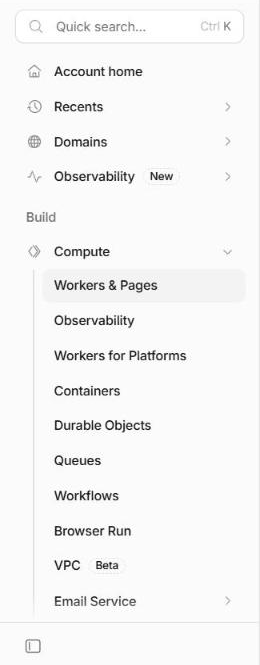
The left menu: Compute, then Workers & Pages What you should see: You should see the Workers & Pages page.
Start a Pages project
Tap Create application. At the bottom of the page tap the link that says Need to use the legacy Pages workflow? Continue to Pages. Then, under Drag and drop your files, tap Get started. Type a project name using small letters and no spaces, like glowstudio. This name becomes your free address. Tap Create project.
What you should see: You should see a message that your project will be deployed to yourname.pages.dev.
Upload your folder and deploy
You will see a box that says Drag in or click to upload a file or folder. Drag your mysite folder into the box, or tap the word folder and choose mysite. Do not tap the word file, because that only accepts zip files. When it says the file is uploaded, tap Deploy site and wait about a minute.
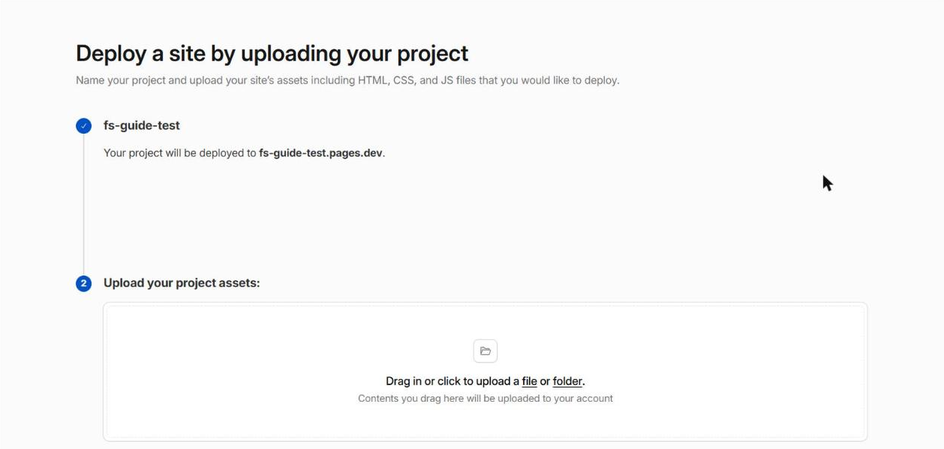
The upload box with the project name at the top What you should see: You should see a box with your uploaded file, then a Deploy site button.
Check it on your phone
When it finishes you will see Success! Your project is deployed. Tap your yourname.pages.dev link. Your site is live with the safety padlock (SSL) already on. Open the address on your phone. Tap every Call and WhatsApp button. Read every price and phone number out loud. If something is wrong, change it in the builder, download again and upload again (see Updating below).
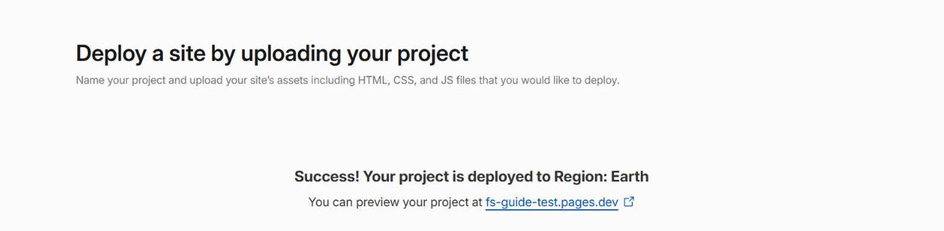
The success message with your free address What you should see: You should see Success! Your project is deployed, with your free address.
Add your own domain (optional)
A domain in your name, like glowstudio.in, costs roughly ₹500 to ₹1,000 a year. It is the only yearly cost. Buy it from a registrar you trust, so that it stays in your name. In your Pages project open Custom domains, tap Set up a custom domain, type your domain and follow the steps Cloudflare shows. Domains can take from a few minutes to a few hours to start working.
What you should see: Your domain opens your website with the padlock.
If something goes wrong
My page shows a Not Found or blank page
Your file must be called exactly index.html, in lower case, and sit directly inside the folder you uploaded, not inside a folder inside it. Rename it, upload again, and it will work.
I changed my site but I still see the old one
Press refresh on your phone, or open the link in a private window. If it is still old, you need to upload the new folder again (see Updating below).
The padlock is missing or the browser says not secure
Wait a few minutes after deploying or after adding a domain. Cloudflare sets up the padlock on its own. If it is still missing after an hour, open the Pages project and check that your custom domain shows as Active.
My images do not show
Keep your photos in a folder called images inside mysite, and upload the whole mysite folder, not only index.html.
The Cloudflare screens look different from this guide
Cloudflare changes its screens now and then. Look for the words Pages, Direct Upload or Drag and drop your files, or a way to drag in a folder. The idea stays the same: make a project, drag your folder in, deploy.
How do I update my site later?
Change your details in the builder and download a new index.html. Put it in the mysite folder, replacing the old one. Open your project in Cloudflare, go to Deployments, tap Create deployment (or Upload new assets), and drag the folder in again. It is live in about a minute.
Still stuck, or want us to do it with you?
The Ready-Made Site includes a 30 minute support call to help you publish and connect your domain.
See my website free